

Using Git LFS for Large Files
On this page
Git LFS on git.nrw allows you to version and manage large files efficiently without bloating your repositories. It stores large files outside the regular Git history while keeping references inside your repo. Git LFS is activated by default for every new project but still needs to be installed and configured.
Pushing multiple large files into your repository could lead to it reaching its maximum capacity (2GiB) rather quickly. To prevent this, large files can be stored in the Git Large File Storage outside of your repository, leaving only a small, text-based pointer inside the repo for Git to manage.
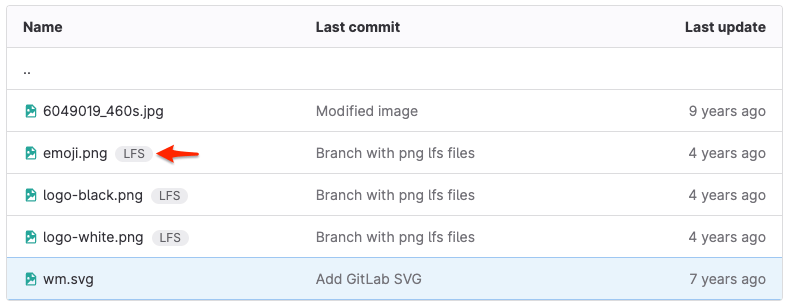
Files stored in the Git LFS indicated by the LFS tag following the file name
This helps for all large files, but usually Git only stores the differences between versions of nonbinary files in plain text to save space. Binary files can’t be monitored that way, which would result in Git having to store every version of those files and potentially multiplying the storage needed with every new version. To prevent this, those files can be stored in the Git Large File Storage outside of your repository, leaving only a small, text-based pointer inside the repo for Git to manage.
Important to note is that the size of your LFS also counts towards the overall size of your repository, which is limited to 2GiB by default when using git.nrw. It only helps speeding up processes like clone, fetch and pull by shrinking the amount of data that needs to be processed.
How to import files to the Git LFS
A file that is uploaded using the web interface is always added to your repository, not the LFS. If you want to add files to the LFS of your project you need to configure which files to track via git lfs track to change the rules specified in .gitattributes to commit and push your repo to Git. Install Git LFS on your local machine
For example:
-
Install the git lfs extension on your local machine
1.1
sudo apt install git-lfs(Debian/Ubuntu)1.2
sudo dnf install git-lfs(Fedora)1.3
brew install git-lfs(macOS)1.4 Load the installer from https://git-lfs.github.com (Windows)
1.5
choco install git-lfs(Windows) -
git lfs track "*.png" -
git add .gitattributes(file needs to be in the root directory of the project) -
git add example.png -
git commit -m "Track file with Git LFS" -
git push
Forking a repository that uses Git LFS
When you fork a repository, your fork includes the upstream repository’s existing LFS objects that existed at the time of your fork. If you add new LFS objects to your fork, they belong to only your fork, and not the upstream repository. The total object storage increases only for your fork.
When you create a merge request from your fork back to the upstream project, and your merge request contains a new Git LFS object, GitLab associates the new LFS object with the upstream project after merge.
Cloning a repository that uses Git LFS
When you clone a repository that uses Git LFS, Git detects the LFS-tracked files and clones them over HTTPS. If you run git clone with a SSH URL, like user@hostname.com :group/project.git, you must enter your GitLab credentials again for HTTPS authentication.
Migrating files from a repository to Git LFS
If your Git repo is growing too big and you want to migrate files from your repo to Git LFS, it will rewrite your history, which is a “destructive” operation and thus to be handled with care. See the git-lfs-migrate documentation for details.