

Assigning placeholder
On this page
During the migration of GitLab accounts, some accounts may not be automatically assigned to users (for example, if the email address is not set to public). These accounts appear as so-called placeholders in the member area of the respective group. Group administrators or moderators can manually assign these placeholders to the correct users. After successful assignment, the user receives an email and must confirm the assignment.
1. Locate group and placeholders
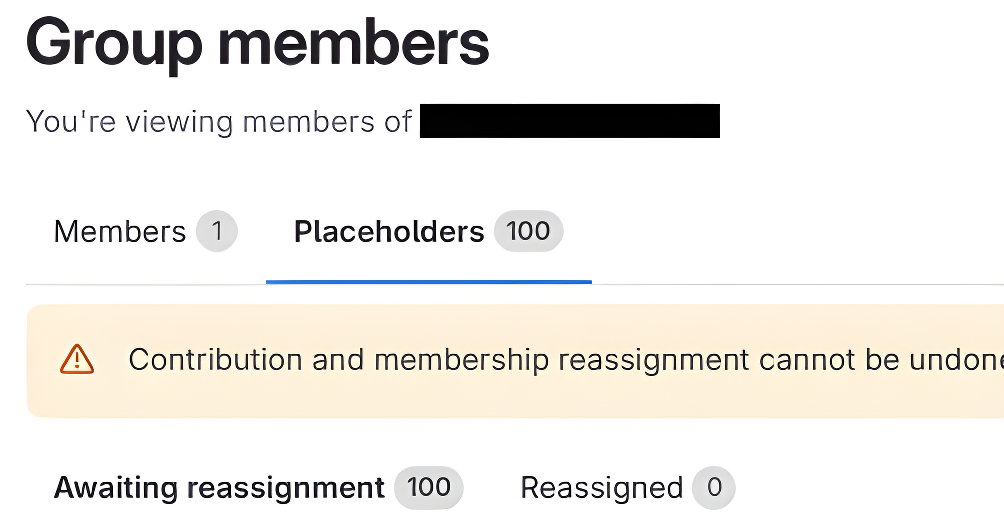
Select the affected group and navigate via “Manage” → “Members” to the “Placeholders” tab. Under “Awaiting reassignment,” all unassigned accounts are listed.
2. Identify and assign placeholders
Each placeholder provides a temporary placeholder ID, the source of import, and the associated username. Using the “Select User” dropdown, you can assign the placeholder to the corresponding group member.

3. User confirmation
After the assignment, the user receives an email with a confirmation link. Only after clicking this link will the placeholder be finally assigned to the user.
Optional: If there are a large number of placeholders, you can download a CSV file containing the relevant data records, adjust the missing assignments in it, and then upload it again.
Warning
Incorrectly assigned placeholders may cause issues with permission management. Please check assignments carefully.