

Assigning DOIs to GitLab Repositories
Versioning Strategies
Assigning DOIs to GitLab Repositories
GitLab does not natively support DOI creation, but services like Zenodo can assign DOIs by integrating with GitLab repositories. The process involves archiving a version of your code and registering it with Zenodo to obtain a persistent identifier.
Step 1: Create a release in GitLab and upload an archive (e.g., ZIP file) of the code.
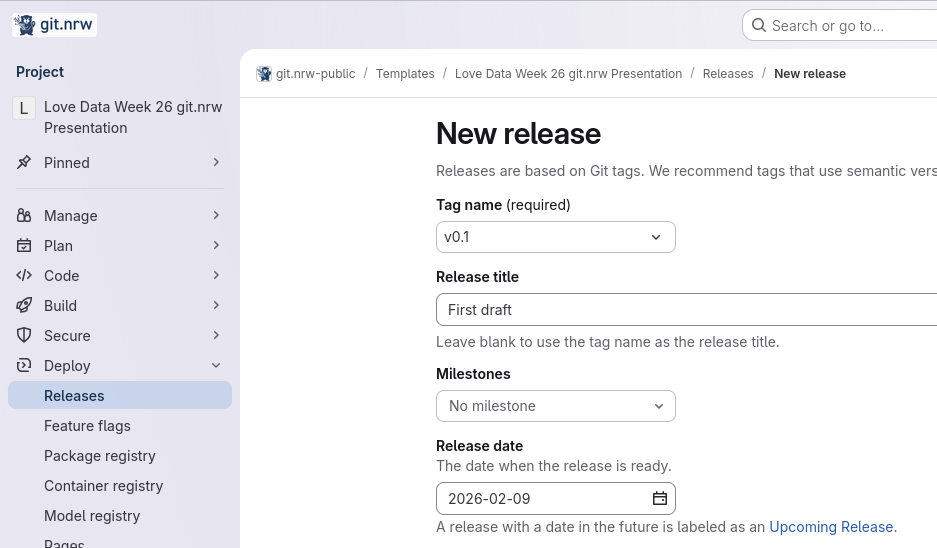
- Navigate to your repository on GitLab.
- Go to “Releases” > “New Release”, tag it with a version number (e.g.,
v1.0), and attach the ZIP archive of your project.
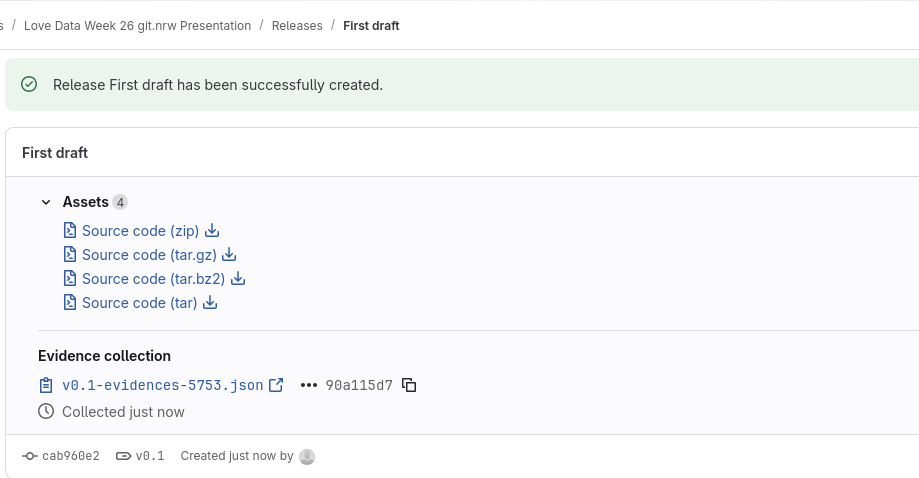
Step 2: Register your archive and obtain a DOI by utilising your university’s publications server or the Zenodo API.
University server
For example:
RWTH Aachen: https://publications.rwth-aachen.de/collection/FullTexts
Universität Duisburg Essen: https://duepublico2.uni-due.de/content/index.xml
TH Köln: https://epb.bibl.th-koeln.de/home
Universität zu Köln: https://kups.ub.uni-koeln.de/information.html
Universität Münster: https://www.uni-muenster.de/kommunikation/publikationen/index.html
Zenodo
- Go to Zenodo.org
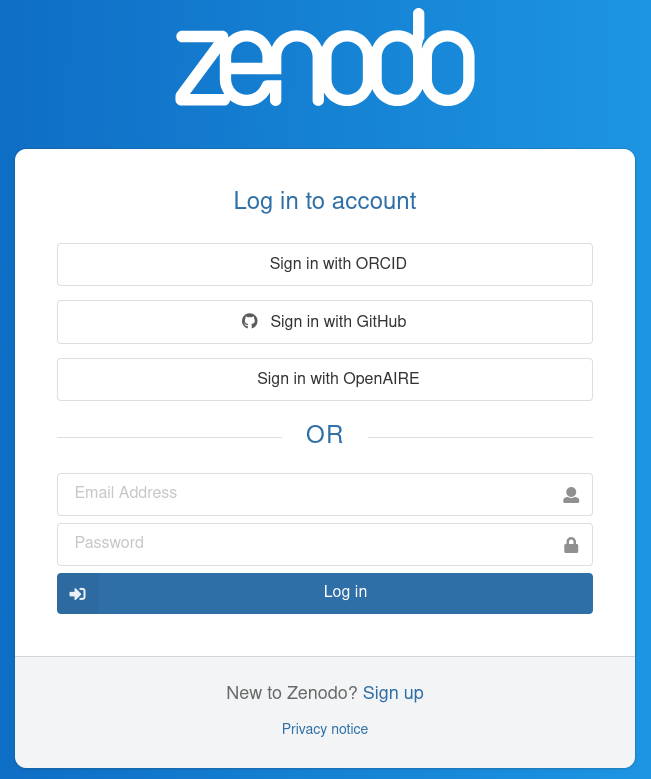
- Log in with your preferred way
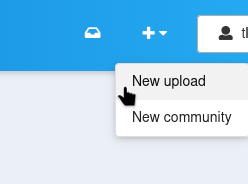
- Create a new Upload (upper right corner)
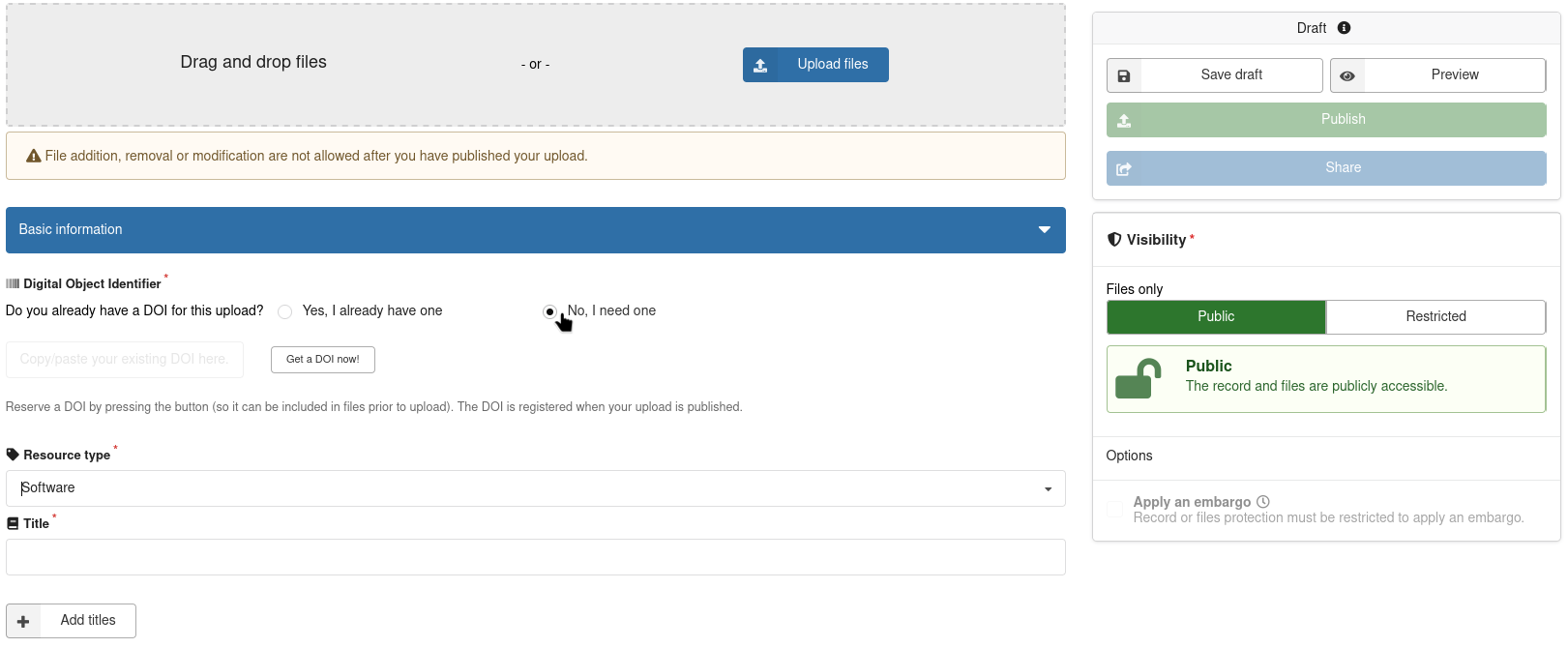
- Upload the ZIP file to Zenodo via its web interface or API.
- Choose whenever you already have a DOI for the Project in our case No
- Assign metadata (e.g., title, description, author) and generate a DOI for the release.
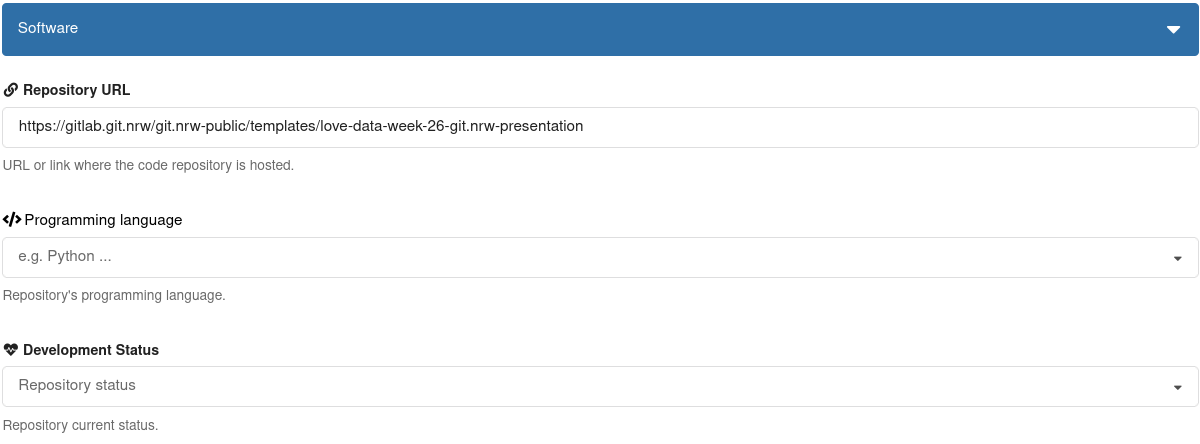
- Add the Repository URL to git.nrw
Step 3: Link the DOI to your repository via Zenodo/GitLab integration or embed it in documentation.
- Copy the DOI provided by Zenodo (e.g.,
10.5281/zenodo.1234567). - Add the DOI badge or link to your GitLab project’s
README.mdor wiki:
[](https://doi.org/10.5281/zenodo.1234567)
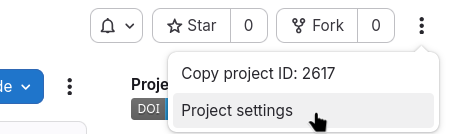
- Go to Project settings
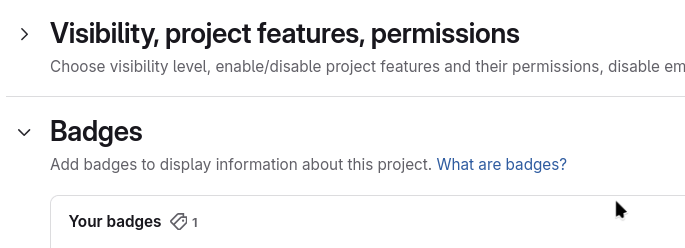
- Click on new Badges
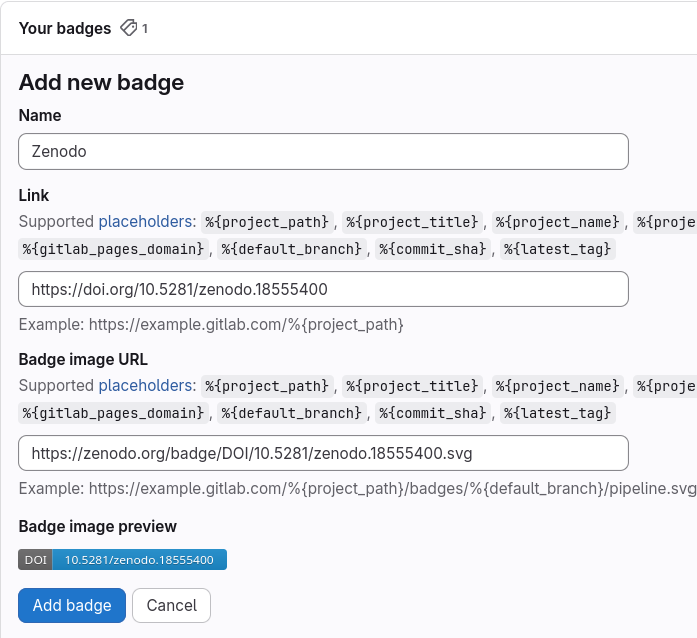
- Fill out the Link to the DOI
- Fill DOI into “https://zenodo.org/badge/DOI/<YOUR-DOI-HERE>.svg”
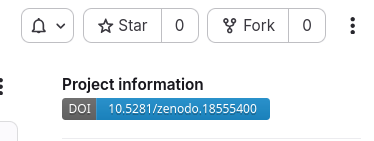
Alternative: Using unofficial script to connect to Zenodo
If you want to automate the process of assigning DOIs to your GitLab releases, you can use the unofficial script gitlab2zenodo . This script helps you connect your GitLab repository with Zenodo, making DOI assignment easier and more reproducible.
Guide externally:
Sacha Beniamine: gitlab2zenodo
Note:
This script is unofficial and not maintained by GitLab or Zenodo.

Please review the script and its documentation for updates and security best practices.
Alternative: Using GitHub mirrors with Zenodo integration
If you prefer using official plugins, you can mirror your GitLab repository to GitHub and use the Zenodo integration available there. This allows you to create a DOI for your GitLab repository by leveraging GitHub’s DOI generation capabilities.
Guide externally:
Overview by Hamburg University of Technology In depth guide by Hamburg University of Technology
Source and Further Reading
This guide is based on the following source:
- https://git.fmrib.ox.ac.uk/open-science/community/Open-WIN-Community/-/blob/bab518300275e64b07e985e99f669f82f4314800/docs/gitlab/repo-doi.md
- https://gitlab.com/sbeniamine/gitlab2zenodo
- https://docs.github.com/en/repositories/archiving-a-github-repository/referencing-and-citing-content
- https://www.tub.tuhh.de/tubtorials/2022/05/30/open-access-publishing-at-tuhh-exemplary-step-by-step-guide-for-a-toolchain-with-tore-gitlab-sherpa-romeo-and-zenodo/